
SAP GUI (Graphical User Interface)
Definition or Meaning - What is SAP GUI?
Full form or SAP GUI stands for (Graphical User Interface), an important ERP tool that allows SAP end users to use various software applications by providing easy-to-use graphical interface, runs on operating systems like Apple Macintosh, Microsoft windows, UNIX and so forth. This SAP component dominates a major share of the worldwide market and offers convenient accessibility to the views, formats, applications, features and functionalities of SAP applications. It also allows users to remotely access the SAP Central Server of an organization, via a network.
The first release of SAP GUI version 1.0 did not boast of many graphical tools like radio buttons. However, over time, SAP has revised its GUI module and the latest versions released in June 2012 (SAP GUI 7.30) were equipped with new customization features and useful functionalities - they were developed with the help of Visual Studio 2010.
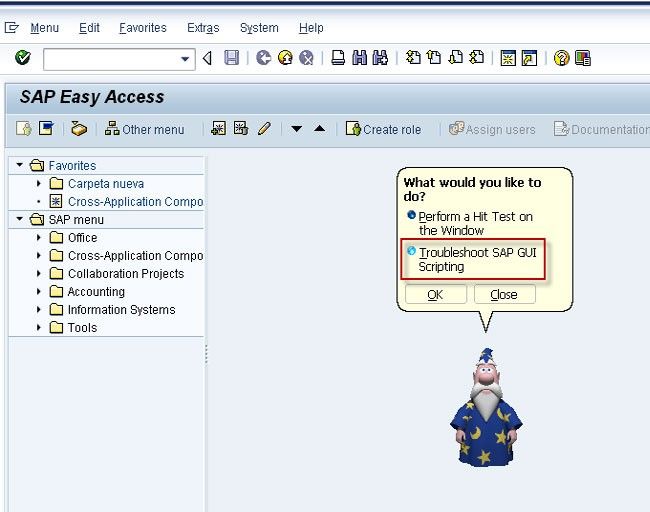
SAP GUI forms the most important client in the SAP R/3's 3-tier architectural structure of databases, application servers and client-based applications. Allowing users to enjoy the many benefits of SAP Business Information Warehouse and SAP ERP (Enterprise Resource Planning), this client software (SAP GUI) offers support to the distributed applications of SAP. For instance, it allows SAP users to prevent potential company-internal hackers to get access to unencrypted communications used in their organizations.
Going a long way in preventing extended authorization to usernames/passwords linked with the confidential areas of the SAP system, ‘SAP Screen Personas’ are now being used with SAP NetWeaver ABAP programs. They are totally compatible with the system landscape and strongly protect all communications between servers and clients, through a tool called Secure Network Communications. These and other SAP GUI tools make this module totally indispensable in modern day organizations.
Along with the above-mentioned functionalities, SAP offers many shortcuts in the command window. Some of these are:
- (/n) for navigating to a transaction from the existing transaction window
- (/o) for opening a new transaction window
- (/ex) for exiting the screen
- (/nex) for exiting GUI.
Advantages of SAP GUI (Graphical User Interface)
Some of the noteworthy benefits of SAP GUI are:
- A single face GUI for accessing all SAP components such as ERP, BI, CRM, SCM, XI, and SRM.
- Users are allowed to login with their preferred language, as the same GUI can be used in different languages.
- It is very user-friendly and useful for creating favourites, start-up transactions for reducing dialog steps, and so forth.
- This module is downward compatible for supporting all SAP applications that are below the current GUI Version. In other words, the latest version of GUI supports the lower versions of SAP components with ease.
- It contains user parameters that are defined for more frequently keyed inputs. This enables the automatic population of text boxes based on specific user logins and reduces the percentage of user inputs in real time.
- SAP GUI offers role based and easy to access SAP menus for reducing the GUI load.
- This SAP module is intelligent enough to determine the server that is least loaded in the event of more than one instances (application server) being configured.
- It allows access across low speed connections and displays screens without graphics/logos as they tend to consume more network traffic.
- GUI SAP boasts of ergonomically designed interfaces for configuring GUI font size, colors, logos, visual designs and custom layouts.
SAP GUI is responsible for handling the various layers of SAP: presentation, the application as well as the database layers. Its family consists of:
- SAP GUI for HTML - which needs Internet Transaction Server (ITS) for providing access to SAP systems.
- SAP GUI for Java environment - a generic SAP GUI that covers many platforms and looks like the Windows version which is devoid of platform-specific decorations.
- SAP GUI for Windows environment.
Different Types of SAP GUI
In order to connect users to an SAP system, SAP GUI (Graphical User Interface) uses different protocols. For instance, SAP GUI for Windows and Java use DIAG/RFC for connecting users to their SAP systems while SAP GUI for HTML works in line with the HTTP Protocol.
SAP GUI consultants, functional consultants, super users and trainers are increasingly using this module for adding, modifying and deleting the various SAP access parameters. With the help of a certification course in SAP GUI applications, they can look forward to lucrative career opportunities in reputed companies worldwide. Most companies are on the lookout for experienced SAP GUI professionals and are ready to pay high salary packages to deserving candidates.
SAP GUI For JAVA
SAP GUI for JAVA environment (abbreviated to SAP GUI for Java) is written in java and is the platform-independent implementation of SAP GUI. Like SAP GUI for the windows environment, this GUI also uses the DIAG protocol, so the volume of data transfer for each screen change is also generally only a few KB.
SAP GUI For Windows
Windows-based platform and supports all transactions in an SAP system the flow data between the presentation leave and the allocation level does not consist of prepared screens but rather logical compact information about control elements and user input (DIAG protocol).
SAP GUI For HTML
Consist of Internet Transaction Server (ITS) on the server side and a web browser on the client side. The ITS is required to convert the SAP GUI data flow from the SAP web Application server into HTML and back. An HTML data flow is exchanged (using the web server) between the WGate f the ITS ad the front end. The primary advantage of SAP GUI for HTML is that almost no installation is required on the frontend all you need is a browser (currently: Microsoft Internet Explorer, Version 4.0 or higher ) SAP GUI for HTML does not support all the function in SAP system, it is however, sufficient for he majority of user un a company.
Configure SAP GUI or SAP Front End
Note:Before Configure SAP GUI u need to install SAP Front End
CONFIGURING GUI
Douple Click on the SAP GUI Icon on your Desktop
SAP Logon 640
Click on Systems TAB
.jpg)
Click Systems tab
Click on User Defined
In New Entry Window
Description : Give the Name your Logon
Application Server: Give the Name or your server
SAProuter String : if u dont have leave it blank
System ID: give the name of your SID
System Number: 00
Than click add on Log on
.jpg)
Click ECC6 And than click Log On.jpg)
SAP logon will get Created just select and Click on Logon
Tutorials
 Create SAP Logon Shortcut
Step by Step Procedure to Create SAP Logon Shortcut If you don’t want to give client number, username, and password every time you logon into the SAP system then you can create Shortcut on th ... SAP GUI (FrontEnd) Download, Install & Configure for Windows
SAP GUI 7.50 and 7.60 Download for Windows SAP GUI versions 7.50 and 7.60 are free to download from SAP Marketplace only you need to have S-Login and Password. 1. Go to https://support.sap.com/e ...- Directories used with SAP GUI 7.20 as the SAPWORKDIR is obsolete
SAP GUI 7.20 - replacement of SAPWORKDIRStarting with SAP GUI for Windows 7.20 the local working directory SAPWORKDIR is obsolete and a new Windows compliant structure is used.Windows offers dedicated ...  XML configuration file on Server SapLogonTree.xml
How to generate the XML configuration file on Server SapLogonTree.xml?We want to generate the XML Configuration file on Server SapLogonTree.xml with own program or script and therefore need informatio ...- Compatibility of SAP GUI with different SAP Systems.
The term "SAP System " is used here to refer to the of the subcomponent "SAP_BASIS" of your SAP System.1. SAP GUI higher than or the same as the SAP System It is possible to connect newer versions of ... .jpg) How to display your own logo in the new SAP GUI 7.30
How to display your own logo in the new SAP GUI 7.30
Sap has released all the new updates for SAPGUI 7.30 which is known to be as Branding Feature. The Above feature will permits any kind of user that are relates to SAPGUI 7.30 which will then configure ...- SAP GUI for Windows: All SAP GUI windows disappear
When a termination occurs in the front end (Dr. Watson, memory protection error, and so on) the current session terminates and all GUI windows are exited. The SAP GUI architecture changed in Releas ... - Why we put /H/ in front and end while adding router string in SAP GUI.
A route string describes the stations of a connection required between two hosts. A route string has the syntax (/H/host/S/service/W/pass)* It consists of any number of substrings in the fo ... - SAP GUI for Java 7.20: Graphics and GMUX functionality
Working with SAP GUI for Java 7.20, invoking external graphics does not have any result or file up- and download, execution of external processes and performing desktop queries does not work.In the pa ... - Create Script in SAP System
In this SAP GUI tutorial, the user will learn the step-by-step procedure to create a script in your SAP system What is Script in SAP? SAP Scripts is an SAP tool that is used to generate fo ... - Start Database Structure Check Using Database Manager GUI
How to Start database structure check utilizing the Database Manager GUI? For starting the database structure check in the database manager GUI, select Check. ONLINE operational state: Check ... - Create a shortcut file (.sap) for SAP GUI for JAVA
How to create a shortcut file (.sap) for SAP GUI for JAVA? SOLUTION Please follow the steps below in order to create a .sap file for SAP GUI for JAVA First, you need to launch SAP GU ... - Difference between SSD and SSF in Transaction iView
SAP Shortcut File (SSF) vs Structured Storage Document (SSD) The 3 alternatives in the transaction iView for the property 'Technique for starting SAP GUI for Windows' are: Automatic D ...