
SAP BW (Business Warehousing)
Definition or Meaning- What is SAP BW?
Full form or SAP BW stands for (Business Warehousing), a highly robust and scalable real-time data warehousing platform that captures, stores and consolidates vital information, is the first choice for organizations looking for accelerated operations. SAP Business Warehouse, supercharged by SAP HANA, offers decision-ready intelligence for businesses and powers the data warehouse environment with simplified administration tasks, reduced IT workloads and a lower TCO. With real-time access to credible information, this widely used SAP module is used as an ERP tool and was earlier known as the Business Information Warehouse.
It is an integral part of the SAP Net Weaver technology platform and enables Online Analytical Processing (OLAP) of varied data warehouse processes –in accordance with the business perspective of clients. Going a long way in providing solutions for data analysis, warehousing and reporting; it serves as an effective tool for extracting relevant information from large quantities of historical and operative data. The information views so generated are based on the specific business views of the organization.
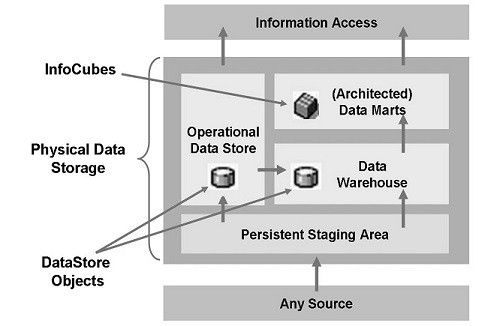
Scope and Opportunity of a Career in SAP BW/ BI
SAP BW is basically a Net Weaver technical course and so it is important to have preliminary knowledge about SAP and the SAP Net Weaver platform before going ahead with this module. Further education in SAP BW/BI is in the interest of:
- SAP BW developers and system administrators responsible for maintaining SAP BW applications.
- End users with varying levels of interest in SAP business intelligence.
- Personnel with basic knowledge in SAP BW knowledge and requiring advanced data analysis and reporting skills.
- Business decision makers and analysts needing more out of SAP data and looking for better ways of improvising data productivity.
In general, along with those in the field of development, other candidates can also pursue this course, provided they are:
- Degree holders in B.Tech, BCA, or M.Tech (in any branch).
- MCAs with a familiarity of the concepts of ERP systems, databases and enterprise warehousing.
- Skilled in data warehousing, using spreadsheets and system administration.
- Professionals or students with certification in system administration courses or a DBA course.
Some institutes prefer to offer certification courses in SAP BW to only those who are experienced in SAP data warehousing.SAP professionals with appropriate knowledge of data dictionary, data warehousing and SAP Net weaver form the best audience for this course.
Become a Certified SAP BW Consultant
Certification in SAP BW offers ample opportunities for growth and opens the doors of leading technology and business consulting firms for eligible candidates. As SAP BW forms an important part of the Net Weaver course, it attracts a lot of attention and is linked to some of the most lucrative openings. The job profiles are of support analysts, SAP BW consultants and other specialized sectors in the field of data warehousing. These job profiles are custom designed to cater to customer requirements and offer support to end user queries and change requests in regards to the SAP BW Module.
In today’s scenario, companies are looking for experienced candidates with strong training experiences, good knowledge of business information processing and advanced skills in SAP business data warehousing. A certified SAP BW consultant can expect a salary in the range of 25K to as high as 750K; the amount being dependent on his/ her years of experience and skills imparted.
Re-Invent your dreams of delivering real time data warehousing services and in-context business decisions to client organizations. Join up today.
Qualifications and Skills requires to become an SAP BW Consultant
Since SAP BW is a NetWeaver technical course it is better to have basic SAP and SAP NetWeaver platform knowledge before having the training in SAP BW. The intended audience of this course can be SAP BW system administrators, developers who maintain and develop SAP BW applications. End business users with an interest in SAP business intelligence can pursue this course for their betterment.
Analysis and business decision makers who need more out of SAP data to improvise productivity can pursue this course. It shall also ease the task by automating data analysis tasks.
Personnel with basic SAP BW knowledge that has interest in advance data analysis and reporting can also pursue this course for increasing their skill set.
Although any graduate from BCA, B.Tech or M.Tech( in any branch), MCA student can pursue this course only if they are familiar with the concepts of databases, ERP systems and enterprise warehousing.
Some of the key skill set includes the good knowledge of using spreadsheets, data warehousing and system administration. Students or professionals having a certificate of DBA courses or system administration courses can also pursue this course.
Some institute offer certified a course only to personnel who are having extensive SAP data warehousing experience. SAP professionals who have knowledge about data dictionary, the experience of data warehousing, and SAP Netweaver are the best ones to pursue this course
Tutorials
 BW Delta Queue RSA7 Interview Questions and Answers
SAP BW Delta Queue RSA7 FAQsQuestion 1: What does the number in the 'Total' column in Transaction RSA7 mean?Answer: The 'Total' column displays the number of LUWs that were written in ... What is Operational Data Store (ODS)?
It is operational data store. ODS is a BW Architectural component that appears between PSA ( Persistant Staging Area ) and infocubes and that allows Bex ( Business Explorer ) reporting. It is not base ...- SAP BW Process Chain Related Interview Questions and Answers
1. What are the extractor types?• Application Specifico BW Content FI, HR, CO, SAP CRM, LO Cockpito Customer-Generated Extractors LIS, FI-SL, CO-PA• Cross Application (Generic Extractor ... - T-Codes for SAP BW/BI
T - Codes DB02 Tables and Indexes Monitor DB14 ... - SAP BW (Business Warehousing) Certification Cost and Course Duration in India
SAP BW CoursesSAP BW courses are dedicated to the cause of imparting extended knowledge and providing the highest levels of technical skills in the field of SAP BW (Business Warehousing) performance a ... - In which table TransType (transaction type) is stored ?
TransType value is stored in ObjectType column of according table. And there is no any special table with TransType values and descriptions. It could help you (not sure it's up-to-date):code NOB -1 - ...  Error Reading the Data of Infoprovider, database error 258
Insufficient Privilege Query failure in BWFollowing error message is coming When we run a BW queryInsufficient privilege: Not authorizedError 258 has occurred in the BWA/SAP HANA serverError reading t ... Defining a Logical System
In this SAP BW tutorial, the readers will learn these step-by-step procedures to create a logical system on your SAP systems. This logical system enables the SAP users to establish communica ... DBSQL_TABLE_UNKNOWN with report SMIGR_CREATE_DDL
Getting following dump while generating of SQL statements with report SMIGR_CREATE_DDLRuntime Error Long TextCategory Installation ErrorsRuntime Errors DBSQL_TABLE_UNKNOWNShort TextTable is unknown or ...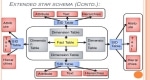 SAP BW Info cube Dimension Tables
How to Clean up BW Info cube Dimension Tables?We are using the RSRV transactiondata test named "Entries Not Used in the Dimension of an InfoCube" to clean up unused entries in a BW infocubes ...- Currency Conversion decimal places are not displayed properly in BW queries.
Why the decimal places in a query is returning wrong values, sometimes the amount might be too high or too low by a factor of 100.Solution:1. Option "Number of Decimal Places" in query designer:You us ... - MB5L report in SAPBW
Transaction MB5l which is also known to be as report RM07MMFI helps you to find out the differences amongst the material values in Material Management (MM), and all the balances of the balance sheet a ... .jpg) SAP Data Services Overview
SAP Data Services Overview
What is SAP Data ServicesSAP Data Services is a data integration and transformation software application for data integration, Transformation, Data quality, Data profiling and text data processing fro ...- How to Delete One or More BIA Indexes?
To delete BIA indexes one need to use transaction SE38 which will be used to execute the program either direct or schedule with in background. Parameters used for this process are as follows:1. One n ... - Explain the concept of Business Content in SAP Business Information Warehouse?
Business content is a set of pre-configured set of roles and task relevant information models based on consistent metadata in the SAP business information warehouse. Business Content provides selected ... - Data Transfer Process (DTP) in SAP BW
DELTA IN DTP 1. Indicator: Only Get Delta Once The source requests of a DTP for which this indicator has been set are transferred only once, even if it refers to the fact that the DTP request ha ... - While using disaggregation in an input-ready query Aggregation level contains the time characteristics.
When we use disaggregation in an input-ready query. The aggregation level used contains the time characteristics 0FISCVARNT, 0FISCYEAR, 0FISCPER3, but not 0FISCPER.Time characteristics in the query, t ...  Set Navigation Attributes for aaDSO, HCPR or Aggregation Level
How to Set Navigation Attributes for an aDSO, an HCPR or an Aggregation Level? SOLUTION In order to use navigation attributes of an aDSO in a query user needs: Method 1) A) Create a ...- Difference between Operational Data Store (ODS) and InfoCube
In this article, we will learn about the key differences between Operational Data Store (ODS) and InfoCube (IC) in SAP BW (Business Warehouse). ODS and Data Warehousing An Operational Data ... - Data Load and Full Load in SAP
Data Load vs Full Load The terms delta load and full load play pivotal roles in determining how data is updated and transferred. These methods are crucial for maintaining accurate, ...