
SAP NetWeaver
SAP software products have helped businesses all over the world to grow and prosper. Products such as SAP ERP and SAP CRM have become indispensable to any large scale organization. Sometimes handling all these software solutions can get tricky. This is because there are a lot of applications and data associated with these software solutions.
.jpg)
That is why the SAP NetWeaver was launched. It is a platform that handles other software solutions easily. Data can be integrated from different sources into a single environment.
In this post, we will learn more about SAP NetWeaver.
What is SAP NetWeaver?
SAP NetWeaver is SAP’s primary integration platform that supports applications such as SAP CRM and SAP ERP. Companies can use this software to integrate business processes and data from different software. It offers the foundation to operate different application landscapes.
You get the required tools, web services, and server functionalities. This assists you in seamless data, system, and application integration. Moreover, it supports various business operations.
These include -
- Supply chain management
- Finance management
- Customer relationship management
- Human resource management
Developers and administrators use SAP NetWeaver to handle different SAP systems. It also comes with different usage types for analytics tools, such as BW & PI and Portal. Furthermore, SAP NetWeaver offers an extension to big data, cloud, and mobile solutions.
SAP NetWeaver History
SAP NetWeaver was developed by TopTier Software in 1997. In 2001, this company was acquired by SAP. Later in 2004, SAP NetWeaver was launched by SAP as NetWeaver 2004. NetWeaver 7.0 was made launched on October 24, 2005. The SAP NetWeaver7.5 SP 19 is the latest version.
SAP has worked with tech giants such as Sun Microsystems, HP, and IBM to develop SAP NetWeaver’s components. Later on, development tools were created for SAP NetWeaver. These include –
- ABAP Workbench
- SAP NetWeaver Developer Studio
- Visual Composer
- SAP NetWeaver Development Infrastructure
Core Capabilities of SAP NetWeaver
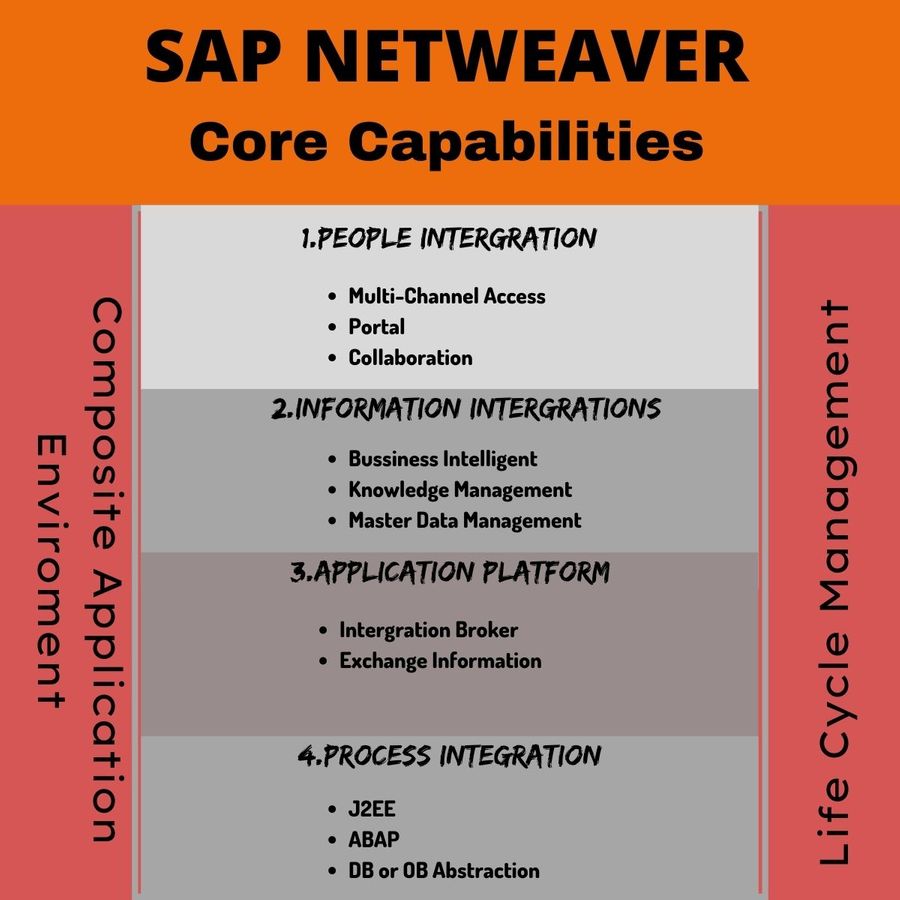
The core capabilities of SAP NetWeaver include –
People Integration
As the name suggests, SAP NetWeaver lets you bring together your employees, staff, and stakeholders. This enables them to work more efficiently. This is made possible through its portal technology that delivers unified and personalized access to users. This access is role-based, so users can focus more on the data that is relevant to them.
SAP NetWeaver allows all staff to collaborate and communicate effectively. It offers Collaboration Rooms, chat, and application sharing facilities. You can use third-party tools such as Microsoft Exchange and WebEx to collaborate effectively.
Another important feature is the Multi-Channel Access. This lets you connect to ERP systems via mobile, web, voice, or radio technology.
Information Integration
This simply means that you can integrate information or data from different sources, into a single location. It lets you make sense of your data and make important decisions.
SAP NetWeaver offers Business Intelligence tools for developing interactive reports and apps. There are BI Content & BI Content Extensions that help this process. Moreover, SAP NetWeaver offers common access to unstructured data and documents. It offers data handling features such as
- Search
- Classification
- Subscription
- Versioning
All this makes text mining and data processing easy in the case of large data sets or complicated documents.
Application Platform
The SAP Web Application Server provides an architecture for developing, running, distributing business apps and Web services. You can develop your applications using ABAP on an interactive and browser-based platform. Software developers can manage the software development lifecycle with almost marginal downtime.
SAP NetWeaver also has ABAP code analysis tools. These help developers remove obsolete code. They can make changes according to database implementation. It also helps them enhance the performance of database queries.
Process Integration
SAP NetWeaver allows companies to coordinate and manage workflows across many departments. The software offers Usage types. These let different SAP and non-SAP systems to communicate with each other. Even if the systems run on different platforms, they can communicate with each other.
The SAP NetWeaver architecture offers various facilities. These include message exchange, configuration options for business process management, and message mapping.
Features of SAP NetWeaver
Some salient features of SAP NetWeaver are –
- SAP NetWeaver lays the foundation for SAP Business Suite and SAP Business by Design. Custom-built apps and partner solutions are also supported
- It uses open technological standards for integrating information from various sources. It also supports modern technologies such as Big Data analytics and IoT
- Java servers and ABAP (Advanced Business Application Programming) is used for supporting applications
- Allows IT teams and users to change, add, create, and control decision logic. Data models are also provided to encourage conceptual thinking
- In-built functions enable you to integrate various processes across applications. This lets you enhance your programming model
- A web-based platform which is also a foundation for Enterprise Service-Oriented Architecture
Installation Options for the SAP NetWeaver Application Server
There are two ways to install SAP NetWeaver Application Server. They are –
- ABAP System– In this method, you can execute ABAP programs and some SAP Java apps
- Java System– In this method, you only can run J2EE apps. No ABAP programs can be run this way
SAP NetWeaver Components
SAP NetWeaver has some important components that help businesses to execute business operations and solve issues. These include –
1) SAP Business Information Warehouse
This offers a business intelligence platform and some data warehousing functions. There are tools companies can use to analyze business data and make crucial decisions.
2) SAP Business Intelligence
With the help of analytics and reporting tools, businesses can analyze data and uncover hidden patterns. Using this, data can be integrated from different sources and understood. Then, it can be distributed to other departments and concerned staff.
3) SAP Enterprise Portal
This is used for creating role-based interfaces for users. It makes it easier to focus on the important tasks at hand. Moreover, businesses can create single access points for services, apps, and data within SAP environments.
4) SAP Exchange Infrastructure
This component facilitates the exchange of information between the SAP environment and external systems. It also offers a framework for building adapters. These adapters establish communication between two apps.
5) SAP Knowledge Warehouse
This assists companies to create and manage knowledge bases. These are used for storing data about training materials, documentation, and manuals.
6) SAP Master Data Management
This allows companies to collect and organize data from various heterogeneous sources. All this information is consolidated into a single location.
7) SAP Mobile Infrastructure
Using this infrastructure, you can create one interface which can communicate with any device. It acts as a universal translator for mobile devices.
8) SAP Web Application Server
This is the platform on which SAP NetWeaver is built. This works as an engine behind all the applications and tools.
9) SAP NetWeaver Process Integration
This allows companies to integrate business processes running across different systems.
Advantages of SAP NetWeaver
The primary advantages of using SAP NetWeaver are –
- It can adapt to different technologies used in a business and enhance its efficiency
- Applications designed using different languages can be shared among various vendors easily
- As a lot of data can be handled and processes from a unified database, it saves IT and management costs
- It is a heterogeneous platform that can change according to business needs and technology trends. The need for software customization is reduced
- Reduces system complexity that allows employees to work with the software easily. Furthermore, the learning curve is not very steep for SAP NetWeaver
- It increases the return on investment for any business within a short period
- Web and mobile apps let companies implement business logic
- Its Service-Oriented Architecture approach eases the process of system upgrades
Become a Certified SAP NetWeaver Consultant
To get a job as an SAP NetWeaver Consultant, you need to have a solid foundation in the NetWeaver platform. You also need to know its architecture, application development process, and navigation. The SAP Certified Technology Associate – System Administration (SAP HANA) with SAP NetWeaver 7.5 is a good certification course for this.
You can have a bright career after learning about the SAP NetWeaver platform. In India, the average base pay of an SAP NetWeaver Consultant is INR 913 K per year. After years of experience and skills under your belt, this salary can go up to INR 1330 K per year.
The major companies hiring SAP NetWeaver Consultants include IBM and CGI.
Conclusion
SAP NetWeaver can be considered an all-rounder software solution for organizations. It has affected their growth, sales, development, management, and revenue positively. The platform reduces complexity among systems. So, employees, administrators, developers, and managers can all focus on their business objectives.
Other Useful SAP Netweaver Resources
Tutorials
- Operating System Call Getaddrinfo Failed (error no. 0)
You find the following entries in the SystemLog repeatedly:Operating system call getaddrinfo failed (error no. 0 )NiConnect Unsuccessful, Return Code: -0003> Host: <hostname>> S ...  SAP NetWeaver Developer Studio 7.5 Installation and Upgradation
How to install or upgrade SAP NetWeaver Developer Studio 7.5The hardware and software system requirement for SAP NetWeaver Developer Studio:Software RequirementOperating system: Windows 10 64-bitJDK v ...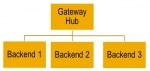 How to Maintain SAP System Alias and Gateway Flags?
We are getting error message like:No System Alias found for Service <> and user <> or No Service found for namespace <>, name <>, version<>Please do the following to main ...- NetWeaver 04 System Copy
Smigr_create_ddl You want to copy an NW system homogeneously or heterogeneously using R3load. A heterogeneous database migration to INFORMIX is not supported. Then you may go for the following s ... .jpg) Visual Administrator
Visual Administrator
Visual Administrator The J2EE Engine Visual Administrator is a graphical user interface (GUI) that enables administration of the whole cluster, all cluster elements, and all modules running on them. ... Error 'XI restart in qRFC not allowed'
XI restart in qRFC not allowed Error When restarting SMQ2In Transaction SMQ2 queue has status SYSFAIL and when we try and restart a entry in SMQ2 you get the error "XI restart in qRFC not allowed ...- SAP NetWeaver 7.0 Support Package
Contents I/ .... General Information II/ ... Tools to import/apply Support Packages III/ .. Corrections to the SP Stack Guide - NW 7.0 Change log DATE........TOPIC...SHORT DESCRIPTION --------------- ... - Error 'R3TR XXXX YYYY was repaired in this System'
We are getting the following error message while importing a transport request in our system.Error: R3TR XXXX YYYY was repaired in this systemWhere the first 4 'XXXX' means the object type (cl ... - How to set up the system landscape directory
In this example landscape shown in the first figure, there are non-production systems (both SAP NetWeaver Process Integration and other application systems) in a non-production environment to the left ... 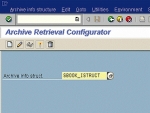 Step by Step processing of Extracting data Archived from SAP
1. Run transition SARJ and Press "Create" Button 2. Specify a description for the information structure, archiving object and field catalog. Afterwards, press again the “Creat ...- Quick Sizer tool
Quick Sizer, SAP's online sizing tool, can assist you in translating the business requirements of your new SAP solution into hardware-independent sizing recommendations. The Quick Sizer is available f ... - Error 'IDOC_ERROR_METADATA_UNAVAILABLE' in SM58
We are running an integration scenario involving the J2EE IDoc adapter, an ABAP sender system sends IDocs to the Adapter Engine's IDoc J2ee adapter using RFC and JCO as communication infrastructur ... - Error 'DbSlExeRead failed' and 'DbSlPrepare/BegRead failed'
We are getting the following error While export of system copy and it was written into export log file.1) Oracle(EXP) ERROR: DbSlExeRead failedrc = 103, table "XXXXX"(SQL error 942)error mes ... - List: of CPIC error codes
CPIC return codes (not SAP-specific) CM_OK &n ... 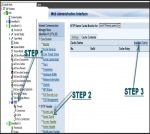 Clear the HTTP Cache content on SAP Netweaver Application Server JAVA
How to clear the HTTP cache content on SAP Netweaver Application Server JAVA?A static resource in a high-level manner is delivered by HTTP cache component. Every single time a static resource is reque ...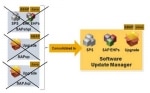 Launch SAP Software Update Manager (SUM) to Enhance Process
What is SAP Software Update Manager (SUM)? Definition - SAP Software Update Manager (SUM) is a versatile tool that can help in performing a release upgrade, applying Support Package Stacks, install ...- Introscope Installation for SAP Customers
The following description contains last minute updates on access and the installation procedure of CA Introscope. It covers the Enterprise Manager, Agent, Workstation, and WebView installation.Licensi ... - Support for languages only available in Unicode systems
You are running a Unicode SAP system and want to configure languages. One or more of the languages you want to add have been not supported on non-Unicode systems. The Unicode standard covers all chara ... 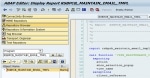 Setup Email Notification Functionality in BPC NW 10.x
How can we configure the email notification functionality of Business process flow (BPF) in BPC NW 10.x?SolutionFrom BW backend: First please maintain the SMTP connection setting from SAPconnect Admin ...- General Applicable constraints to SAP NetWeaver Gateway 2.0
What are the applicable constraints to SAP NetWeaver Gateway 2.0?This article contains several sections: General Constraints: These apply to SAP NetWeaver Gateway as a whole. Constraints for the softw ...