
SAP ABAP
In this competitive business era, companies look to improve themselves constantly. This is important for gaining an edge over their competitors. Along with the improvement in business operations, companies also look forward to developing business applications. One of the most popular programming languages for business app development is ABAP. This is a high-level programming language created by SAP.
Over the years, ABAP has helped many companies develop apps to enhance their business operations. These apps have helped in software development, financial accounting, data analysis, HR management, and asset management operations. Due to all these functionalities, there has been a constant need for ABAP developers in the market.
In this post, we will know all about SAP ABAP – its features, functionalities, and components.
What is SAP ABAP?
SAP ABAP stands for Advanced Business Application Programming. ABAP is a 4th generation high-level programming language. This is used by the SAP system to run apps on the NetWeaver ABAP platform. Professionals use ABAP to modify the application functionalities. All the programs written in ABAP are stored in SAP’s database. Apps can be created and run on the SAP NetWeaver ABAP platform.
ABAP is one of SAP’s most popular software products. Developers have often considered it a simple programming language, hence its popularity. A great feature that it offers programmers the option of choosing between procedural and object-oriented programming. Developers use ABAP for creating reports, interfaces, forms, and module pool programming.
An important feature to point out is that ABAP is feature-driven. This means that the execution of an app will be affected by system events and user actions.
Evolution of SAP ABAP
In the 1980s, SAP ABAP was used by developers for creating reports for other SAP products. For SAP R/3, ABAP played an important role as the extension and implementation language. Later on, the language evolved with new features such as object-oriented concepts and database access methods. By 2010, a lot of new syntaxes were launched.
With the ABAP 7.4 release, SAP decided to optimize the platform for the SAP HANA platform, its in-memory database. Along with this, they introduced the ABAP code data services for data modeling and data access. Then, SAP Gateway became an important part of SAP ABAP with the 7.4 release. The Business Object Processing Framework also became a part of the ABA 7.5 release.
At present, ABAP is used for creating programs for SAP R/3 client-server system. With the development of technology since 1992, ABAP has been used for applications for the SAP system. NetWeaver also offers support for ABAP. All these years, SAP has produced a huge amount of code for ABAP. There are thousands of programmers working on ABAP and creating apps for various companies.
To offer a system for managing the lifecycle of ABAP code, SAP launched SAP Solution Manager, also called SolMan. Now, ABAP can be used for developing various types of HANA-optimized applications. These include analytical, search, and transactional applications.
The best part of ABAP’s evolution is that it enables the simple onboarding of developers without messing their heads with tons of documentation.
History of SAP ABAP
Some notable facts of SAP ABAP’s history:
- This 4th generation programming language was introduced in the 1980s
- In May 2000, SAP launched ABAP Objects, which was an object-oriented extension
- Version 6.40 was released in 2004 and was called ABAP Shared Objects
- In 2006, ABAP 7.0 was released that had the switch framework
- The ABAP 7.40 was released in 2012 having features such as code pushdown, table expressions, constructor expressions, and line index functions
- The ABAP 7.40 SP08 version was launched in 2014, which had FOR expressions, optional interface methods, and Constructor operator REDUCE
- The latest version ABAP 7.54 was released in 2019 including features such as Static Field Control, response information, absolute type names, business service, and authorization checks
ABAP Runtime Environment
All ABAP programs run within the ABAP Runtime environment. This is a part of the SAP kernel. The runtime environment is used for processing statements in ABAP. It is also used in handling events and the flow logic of screens.
Let us see how the runtime works. First of all, the ABAP code is stored in the SAP database. Here, the code exists in 2 forms – source code and generated code. You can edit the source code via the ABAP workbench. The generated code is the source code represented in binary. Thus, the source and generated code of a program are stored in the database.
When your program is executed from the frontend, the program buffer is checked to see whether it exists or not. If the program is not found, then a call to the database is made from the runtime environment to fetch it. All the statement processing and user events are handled by the runtime. The database interface converts ABAP statements (Open SQL) into native SQL statements.
The ABAP programs can communicate with the relational database through the database interface.
SAP ABAP Development Environment
There are two possible ways to develop in ABAP. The availability depends on the release of the ABAP system.
1) ABAP Workbench
2) ABAP Development Tools
What is ABAP Workbench?
The ABAP Workbench is basically a set of tools and programs. These tools help you to develop, execute and test ABAP programs. These tools also help you to develop enterprise resource planning applications. These applications run in the R/3 subsystem. You can use the workbench tools to modify the existing ABAP programs. Along with all this, you can also write report programs, function modules and module pools.
Some of the salient features of ABAP workbench are as follows:
- Provides a graphical user interface that is simple and easy to use
- Helps you to handle the complete life cycle of the ABAP application development
- Enables communication with other desktop applications
- You can make use of the remote function call. This will enable you to communicate with external applications
- All programming and repository objects can be accessed by the given set of tools
Uses of ABAP Workbench:
- Developing ABAP applications and upgraded existing SAP apps
- A platform to write ABAP code
- Debug various applications
- Performance analysis
- Create menus and handle database objects
- ABAP workbench helps in managing conflicts and versions
ABAP Workbench Tools
The important workbench tools include:
- ABAP Data dictionary
- ABAP Editor
- Function builder
- Screen painter
- Menu Painter
- Function builder
- Form painter
- Message class builder
- Let us look at the most important components.
ABAP Data Dictionary
The data dictionary holds all the data for business applications. The different definitions of metadata are maintained by the data dictionary. You can refer to the dictionary objects anywhere throughout the SAP system.
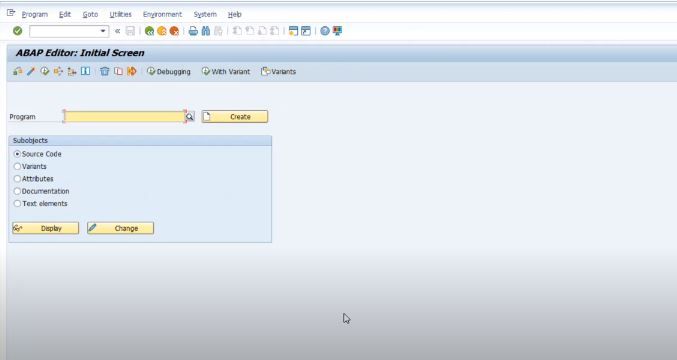
ABAP Editor
The ABAP editor is where you write the code for your programs. You can also edit reports and screens. This editor helps the users to use complicated functions easily. This is possible by grouping the functions together. Moreover, it helps you to create, delete and edit entries in the templates given. You can also change the template layouts.
ABAP Painter
The SAP GUI is designed and maintained using the Painter.
ABAP platform
The ABAP platform is a scalable programming environment. This is used for developing applications in ABAP. This platform is very useful in maintaining the lifecycle of all your applications. This makes your life easier when you are using SAP HANA. Furthermore, you can build Fiori applications.
These are applications that address tasks such as looking up information and approving workflows.
What are ABAP Development Tools?
The ABAP Development Tools is the standard IDE (Integrated Development Environment) used for ABAP application development. This IDE is based on Eclipse that is user-friendly and flexible. The ABAP platform provides you with powerful functionalities such as:
- Lifecycle management
- Troubleshooting tools
- Full integration
- Server-based development process
- Testing
All these features combined with the powerful UI of Eclipse. This makes the platform very efficient. The platform focuses on these three areas:
- Product– This is a new development experience for users made possible by Eclipse. The process was source code development is sophisticated. This is because it is task-oriented and test-driven.
- Platform – The platform is based in Eclipse. You can use this to develop new tools related to ABAP. All development tasks including ABAP, HANA, non-ABAP and UI can be done. You can easily integrate 3rdparty tools and custom tools.
- API –You can use the APIs for building custom tools for the ABAP environment. These APIs are extremely flexible as they are platform and language independent.
SAP ABAP Program Types
Each ABAP program has a program type which must be determined in the program attributes when the program is created.
As in other programming languages, an ABAP program is either an executable unit or a library, which provides reusable code to other programs and is not independently executable.
Executable Program
- Reports
- Module pool
Reports follow a relatively simple programming model whereby a user optionally enters a set of parameters (e.g., a selection over a subSET of data) and the program then uses the input parameters to produce a report in the form of an interactive list. The reason why these programs are called reports is the "list-oriented" nature of the output they produce.
Module pools define more complex patterns of user interaction using a collection of screens. The term “screen” refers to the actual, physical image that the user sees. Each screen also has a "flow logic", which refers to the ABAP code implicitly invoked by the screens, which is divided into a "PBO" (Process Before Output) and "PAI" (Process After Input) section.
Non: Executable Program
- Function group
- Include program
- Subroutine pool
- Interface pool
- Class pool
Subroutine pool Function groups are libraries of self-contained function modules (enclosed by FUNCTION/ENDFUNCTION and invoked with CALL FUNCTION).
ii) An INCLUDE module gets included at generation time into the calling unit; it is often used to subdivide large programs.
iii) Subroutine pools contain ABAP subroutines (blocks of code enclosed by FORM/ENDFORM statements and invoked with PERFORM).
iv) Object classes and interfaces are similar to Java classes and interfaces; the first define a set of methods and attributes, the second contain "empty" method definitions, for which any class implementing the interface must provide explicit code.
v) Class type pools define collections of data types and constants.
Prior to Release 4.6, you had to specify the internal one-character ID to select a program type. Now the program type is chosen based on the full name. The program type defines the basic technical attributes of a program, that is, which processing blocks a program may contain, how the program is handled and executed by the ABAP runtime environment, and whether it can work with its own screens.
SAP ABAP Syntax
SAP ABAP program is a collection of statements, each statement begins with a keyword and ends with a period.The first line of statement start with a word PROGRAM or REPORT and followed by the name.
The syntax is
PROGRAM STECHIES.
Write 'Hello World'.
This example contains two statements: PROGRAM and WRITE. The program displays a list on the screen. In this case, the list consists of the single line "Hello World". The PROGRAM statement indicates that this program is a module pool. This program could be a report after replacing the PROGRAM statement with REPORT .
Below an example of ABAP syntax of report statement type.
REPORT STECHIES.
Write 'Hello World'.
What is SAP ABAP Statement?
ABAP Statement is a combination of keywords, operators, data types, constants, etc.
ABAP Keywords
The ABAP statement starts with a keyword and that determines the meaning of ABAP statement. The different types of keywords are
- Declarative keywords : -These keywords are used to create variable constants and data types. for e.g. Constants, data, types, etc.
- Control keywords : – These keywords are used to control flow of ABAP program. For e.g. If, Case, Do, While, etc
- Event keywords : – These keywords are used to define blocks (set of statements) externally. For e.g. Top – of – page, End – of – page.
- Operational keywords – These keywords are used to process the data in an ABAP program. For e.g. Add, Subtract, divide, multiply, etc.
ABAP Comments
Comments are descriptive text between the lines of ABAP program. Comments are not executed during run time or execution. Symbol (*) is used in first column of sentence. The different types of comments that are used in ABAP programming are
- Line commenting
- Block commenting
- Partial commenting
*----------------------------------------------------*
* Compilation of ZP001......
*----------------------------------------------------*
ABAP Messages
Message class are user defined messages, so we can create our own messages to display on the screen. We can create up to 1000 messages in a single message class and message ID numbers are ranges from 0 to 999. The created messages can be called from program using statement “MESSAGE”.
Syntax is
MESSAGE <type_of_message> <message_id> (message_class).
Structure of ABAP Program
ABAP program consists the following structure
- Header
- Global Declarations
- Processing Logic
- Definition of Reusable Blocks
Header
Header section provides the detailed information about the development and which is the standard template for all custom ABAP developments. The first statement of ABAP program starts with a word PROGRAM or REPORT. It is not mandatory to mention the program name, but for documentation purpose correct name of ABAP program should be used.
When the user creates a program, by default system inserts the first ABAP statement
- For Module Pools: PROGRAM < program name>
- For REPORTS: REPORT <report name>
Global Declaration
Global declaration declares all the global variables
Processing Logic
Processing logic block is used to implement the business logic and it is written for declaration.
Definition of Reusable Blocks
You can define reusable components once and you can call components wherever they are need for business logic.
New to ABAP?
If you are a newbie to the world of SAP ABAP, here are the key concepts to know.
1) Modern ABAP Development
Modern ABAP development is based on technologies such as OData, Core Data Services (CDS) and Business Object Processing Framework (BOPF). With this approach, you can build applications that are ready to be launched to the cloud. These applications will be optimized for SAP S/4HANA and SAP HANA.
The modern development environment is based on Eclipse. This gives you the ability to work with CDS views and the ABAP RESTful Programming Model. Moreover, using Eclipse you can access the front-end and back-end together easily.
2) ABAP in the Cloud
SAP provides users with a Platform as a service (PaaS) called SAP cloud platform. This allows you to develop and run your ABAP applications in the cloud. You can either run standalone applications or as an extension of the SAP software.
The SAP Cloud Platform ABAP Environment will facilitate developers to use their Agile and DevOps methodologies. This way the applications are developed and delivered faster. The classic waterfall model of development is not used here. This modern approach leads to continuous integration of the services. Moreover, as a developer, you do not have to worry about the infrastructure and runtime environment. You can focus on the development of the application.
3) Quality Assurance
The ABAP platform provides you with a comprehensive toolset for application development. This includes advanced quality assurance tools. This comes with the support for conversion to SAP HANA. This also comes with the following features:
- Troubleshooting
- Testing
- Test seams
- Injections
- Runtime monitoring using SQL Monitor and SQL Trace
- Unit testing static code checks
4) Real-Time Programming and Industrial IoT
Many of the professionals are looking to switch to real-time strategies. This is to enhance business functions. So, the business responds to industry changes and customer demands in real-time. This enables the company to deliver personalized services that are efficient.
Real-time applications respond within milliseconds to the user actions. This way a lot of data is processed very quickly. ABAP enables real-time processing with In-memory technology. ABAP channels allow the development of interactive scenarios for users.
Industrial IoT allows the communication of sensors and industrial machinery. These are connected to the IT systems. SAP NetWeaver implements these IoT scenarios using TCP/ IP protocols. This is based on ABAP Push Channel and ABAP Messaging Channel infrastructure. The IoT devices are connected directly with the ABAP server. Therefore, the entire system is simplified.
5) Extensibility
You can use the SAP Business Suite and SAP S/4HANA to enhance your business applications. This allows you to adapt standard business tools according to your business requirements. The following concepts are involved:
- Integration
- Custom fields
- Business configuration
- Logic and custom fields
- UI layout adaptation
- Custom terminology
- Customer-specific applications translation
Extensibility can be divided into two parts:
- Side-by-side extensibility with the help of SAP Cloud Platform
- In-app extensibility with the help of built-in capabilities
6) Custom Code Migration
ABAP supports custom code migration to the SAP Cloud Platform and SAP S4/ HANA. This is made possible through two features. They are ABAP Development Tools in Eclipse (ADT) and Remote ABAP Test Cockpit (ATC). The ATC is a toolset that allows you to run unit tests and static check on your ABAP code. It is compatible with ABAP Code Inspector for enabling smooth code migration.
ABAP and HANA
HANA is the relational database management system offered by SAP. It is an in-memory database that can be deployed on-premises or in the cloud. HANA is a combination of software and hardware. It includes:
- SAP HANA Database
- SAP SLT (System Landscape Transformation) Replication server
- SAP HANA Direct Extractor connection
- Sybase replication technology
When ABAP is used on HANA, the productivity of the system is enhanced. This is because of the Code-To-Data Paradigm of HANA. This allows you to push the code to the database layer. You can do all the necessary operations and calculations there. Then you can fetch only the necessary records for the presentation server.
There are other features you can enjoy while working on HANA with ABAP. They are as follows:
- OpenSQL Programming - This lets you include OpenSQl statements within your ABAP code.
- Core Data Services (CDS) Views – By this technique, data models are defined on the database server rather than the application server. So the table result view is made at the database level.
- ABAP Managed Database Procedures – These are database procedures that run directly on the database. Using this, you can write ABAP methods at the database layers that run faster than core ABAP methods.
SAP ABAP Consultant
A SAP ABAP Consultant develops business application using ABAP. They play an important role while implementing SAP software for an organization. The different roles and responsibilities are:
- Obtaining the documents for the business requirement from the functional analyst
- Forming a detailed plan for the build, system testing and implementation of the applications
- Convert business requirements into functional code
- Document and run unit, system, integration and acceptance tests using various
- Work with other team members to develop, design and deliver the products on time
- Prepare the technical documentation of the software product
- Mentor junior developers
- Offer consulting services
Required skills
- ABAP experience of at least 8 years
- Knowledge of OOP concepts
- SAP Fiori development experience of 1 year
- HANA exposure
- Strong analytical and communication skills
Conclusion
Nowadays, all modern companies use ERP programs for their business activities. So, SAP systems are inevitable. So, learning ABAP will help you in understanding the core technicalities of the system. It will help in developing many new enterprise applications. Updating the existing ones will be easier. ABAP offers great features such as module pool programming, inter-system communication, batch input processing and sequential dataset processing.
This is why many companies now provide SAP ABAP training to their employees. With ABAP skills under their belt, they can build business applications to improve their business.
Other Important SAP ABAP Resources:
Tutorials
 Attach Search Help to Selection Screen Field
There are many ways using which we can add a Search Help to a field on Selection Screen in ABAP. Two of them are as follows:Adding Search help to a Selection screen using Search help Object & func ... Difference between SE16 and SE16N Transaction Codes
SE16 vs. SE16N T.Code SE16: SE16 allows you to view data stored in different fields in tables. SE16 is a data browser, and it is used to view the contents of the table, and we cannot ... Create Table Control
Steps to create table controlThe values specified for the size category and data class are mapped to database-specific values via control tables.1. Declare the table controlAs well as drawing the tabl ... Convert Currency Format
SAP (Systems Applications and Products) maintains ALL currencies in its tables (BSEG, MBEW, etc) with 2 decimalsEven the currencies which do not have 2 decimalsFor example - JPY which has zero decimal ... CONDENSE Statement to Remove, Trim Leading Spaces from a String
CONDENSE Statement to Remove Spaces in Strings in SAP ABAP For removing leading and closing blank completely and convert a sequence of blanks into a single blank for a string "CONDENSE stateme ... SAP BAPI List
Name of function module Short text for function moduleBAPI_SALESGROUP_GET_DETAIL Sales Group: Display NameBAPI_SALESOFFICE_GET_DETAIL Sales Office: Display NameBAPI_SALESOFFICE_GRP_EXIST Sales Office ... Pop-up Dialog Screens
SAP (Systems Applications and Products) has many build in functions that displays pop-up dialog screens.Pop up a dialog screen and allow user to pick a selectionWS_MSG - Create a dialog box in which y ... Workflow Issues - Troubleshooting Tips & Tricks
Here you can see some troubleshooting tips so you can analyse any workflow problems in your system.1) Agent Assignment/Agent DeterminationWork items are not going to the correct users or to any users ... Add F4 help to a field on SCREEN (MODULE POOL)
Adding F4 help to a field on MODULE POOL ProgrammingIn order to add F4 help to a field in module pool follow these steps:- First, go to SE11 and create your own search help (if you don't know how ... SAP Query Step by Step Guide
SAP Query enables data from multiple tables to be extracted in one report, as long as at least one field of data can be linked from one table to another e.g. by Document Number. Unlike table brow ... Difference between RFC and BAPI
RFC vs BAPI 1. BAPI stands for Business Application Programming Interface. It is a library of functions that are released to the public as an interface into an existing SAP system from an external ... LOOP AT with WHERE Clause
Performance Problem with Internal Tables being Read with WHERE Clause in LOOP AT Statement If one use a LOOP AT statement with a WHERE clause, the whole TABLE will be read through not only the ...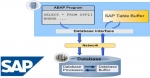 Inconsistency between database and Dictionary
Programs issue a message that there is an error or inconsistency in the ABAP Dictionary. An inconsistency may be caused by the following:The table was activated by illegal means and not adjusted to th ... SAP_CONVERT_TO_XLS_FORMAT Function Module
Q How can I download my internal table into an Excel file? SOLUTION We can use the function module SAP_CONVERT_TO_XLS_FORMAT in order to download the internal table to an excel file. Please u ...- Data Types and Data Objects
ABAP Data Types Elementary Data Types User Defined Types Objectives To introduce : ABAP elementary and user defined data types Keywords used to declare data items Complex recor ... 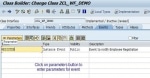 How to create and/or trigger events?
BP_RAISE_EVENT There are only 3 ways you can trigger an event 1) Run transaction SM64 2) Call the function BP_RAISE_EVENT from within a program. 3) Run the program "sapevt" ...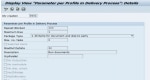 User exits in delivery processing
Which user exits exist in delivery processing and how the delivery data in the existing exits can be changed so that it conforms with the standard.Up to now, in delivery processing, user exits have be ...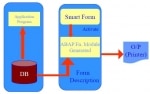 What is Smartform?
A Simple Smartform Tutorial SAP Smartforms can be used for creating and maintaining forms for mass printing in SAP Systems. The output medium for Smartforms support printer, fax, e-mail, or the Intern ...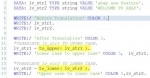 Convert ABAP Code to Upper or Lower Case
How to Convert ABAP Code to Upper or Lower Case?To converts characters into upper or lower case one can use TRANSLATE statement, or uses substitution rules to convert all occurrences of one character ...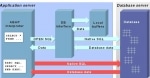 Difference between Open SQL and Native SQL
Open SQL vs Native SQLOpen SQLOpen SQL allows developers to control SQL statements directly. Open SQL encapsulates the semantics for statement execution, parameter binding and results fetching provide ...